
Adding employee availability and time off
Updated: October 23, 2026
You can see employees' availability, holidays and sick leave directly in the schedule, so when you plan shifts you know straight away who can work. Usually employees add them themselves, but you can also do it for them when needed.
Employees add availability and requests themselves
Employees enter their availability themselves in the KalendGO app. They also use the app to send holiday requests and sick leave requests. Once a manager approves a request, the holiday or sick leave automatically appears in the schedule.
Adding availability and time off manually as a manager
If, as an employer or manager, you want to enter an employee's availability, holiday or sick leave yourself, you can do it from the schedule.
Open Manage Availability
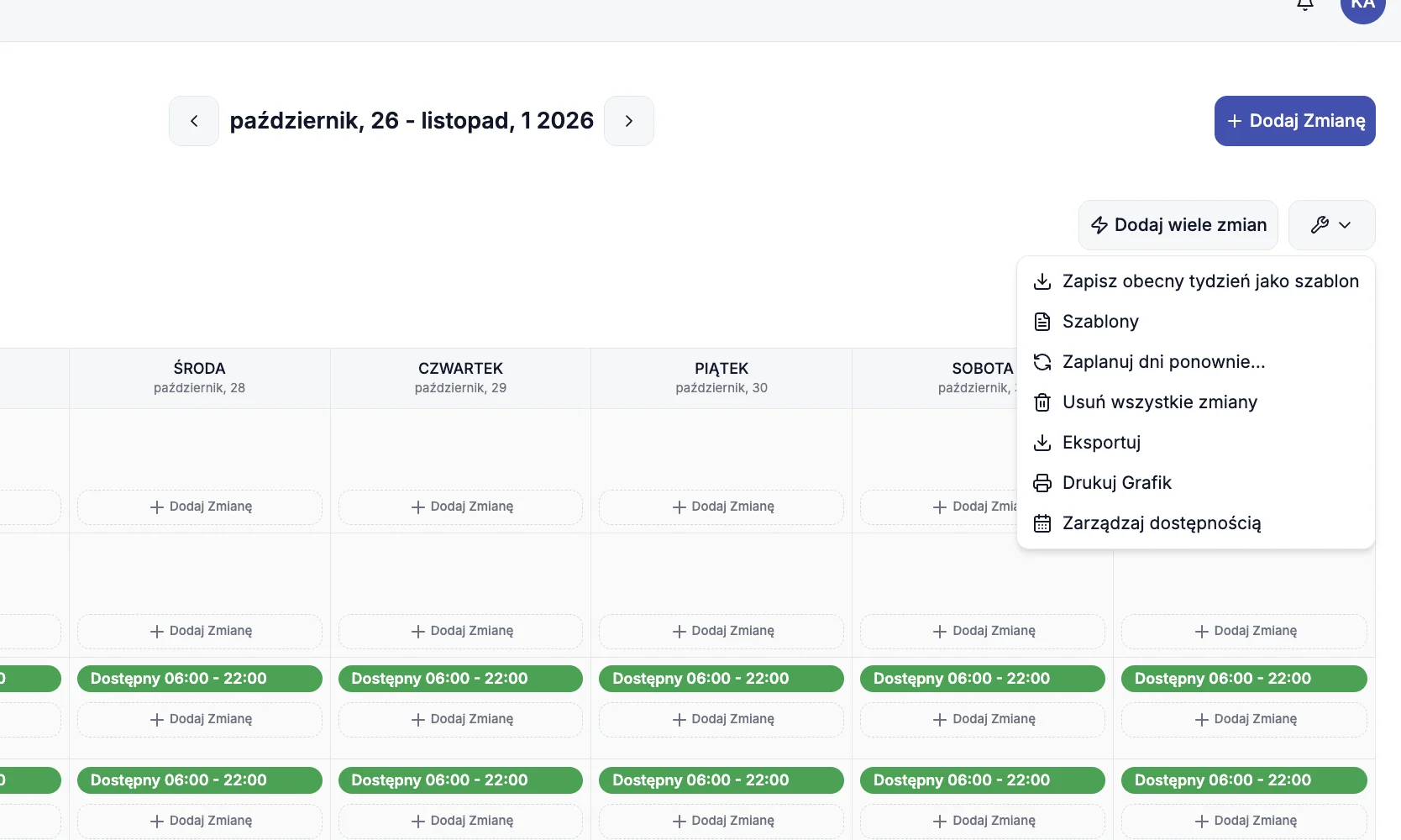
Go to Work Schedule, click the tools icon (spanner) next to the Add Multiple Shifts button and choose Manage Availability at the bottom of the list.
Choose employees
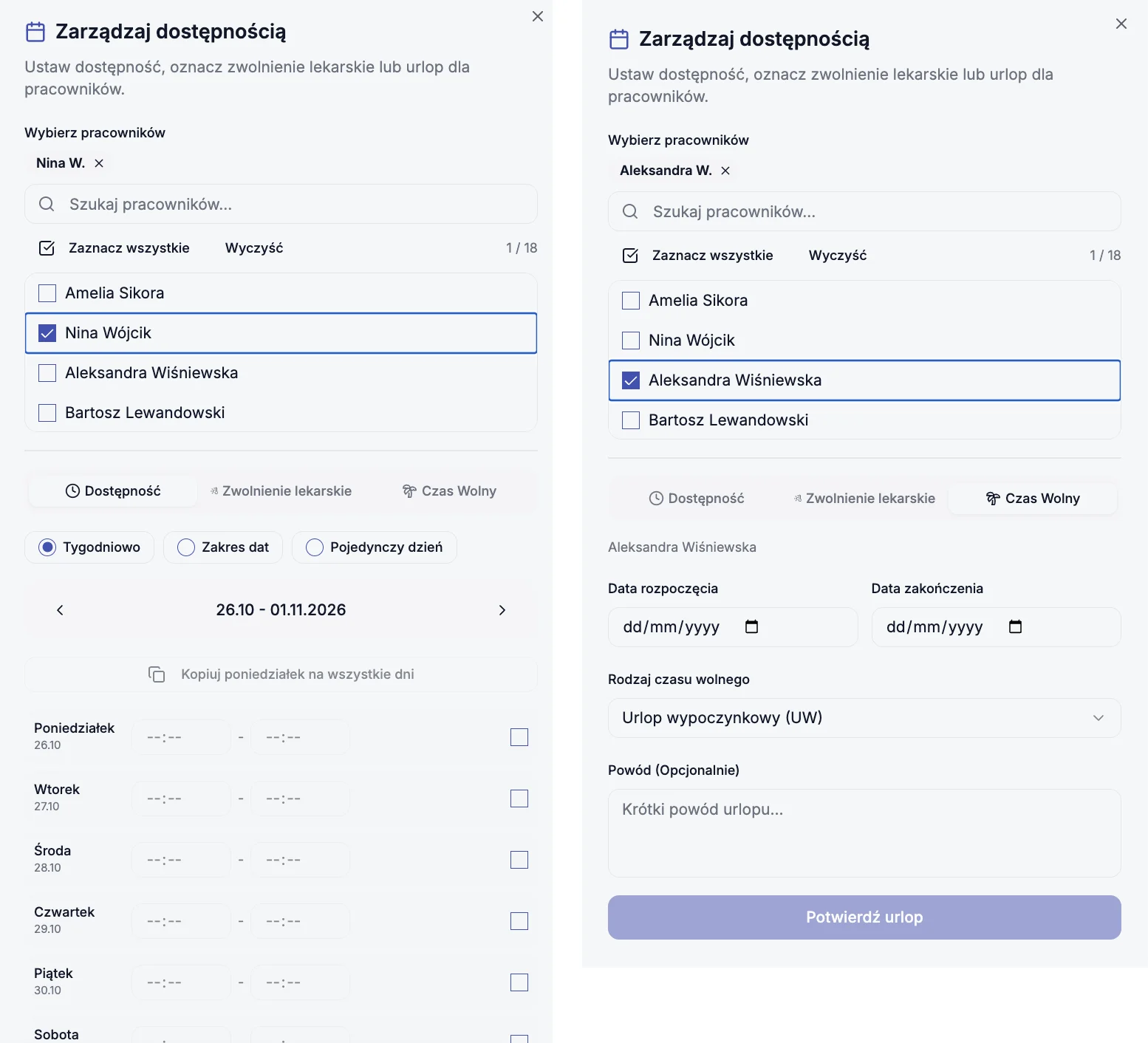
Tick the employee in the list or search for them by name. You can choose several people at once or click Select All.
Set availability, sick leave or time off
Choose one of the three tabs. In the Availability tab, enter the hours the employee can work - weekly, for a date range or for a single day (the Copy Monday to all days button speeds this up). In the Sick Leave tab, mark the period of illness, and in the Time Off tab, enter the start and end date, the type of time off (e.g. annual leave) and, optionally, a reason.
Click Save
Always confirm your changes at the end with the Save button (in the Time Off tab it's called Confirm Leave). The availability, holiday or sick leave appears in the schedule straight away.