Adding shifts and building a schedule template
Updated: October 1, 2026
You build the work schedule from individual shifts. In this guide, you'll learn how to add a shift and publish it for an employee, how to create an open shift that employees can apply for, and how to save a finished week as a template and use it in the following weeks.
Adding a single shift
Go to Work Schedule
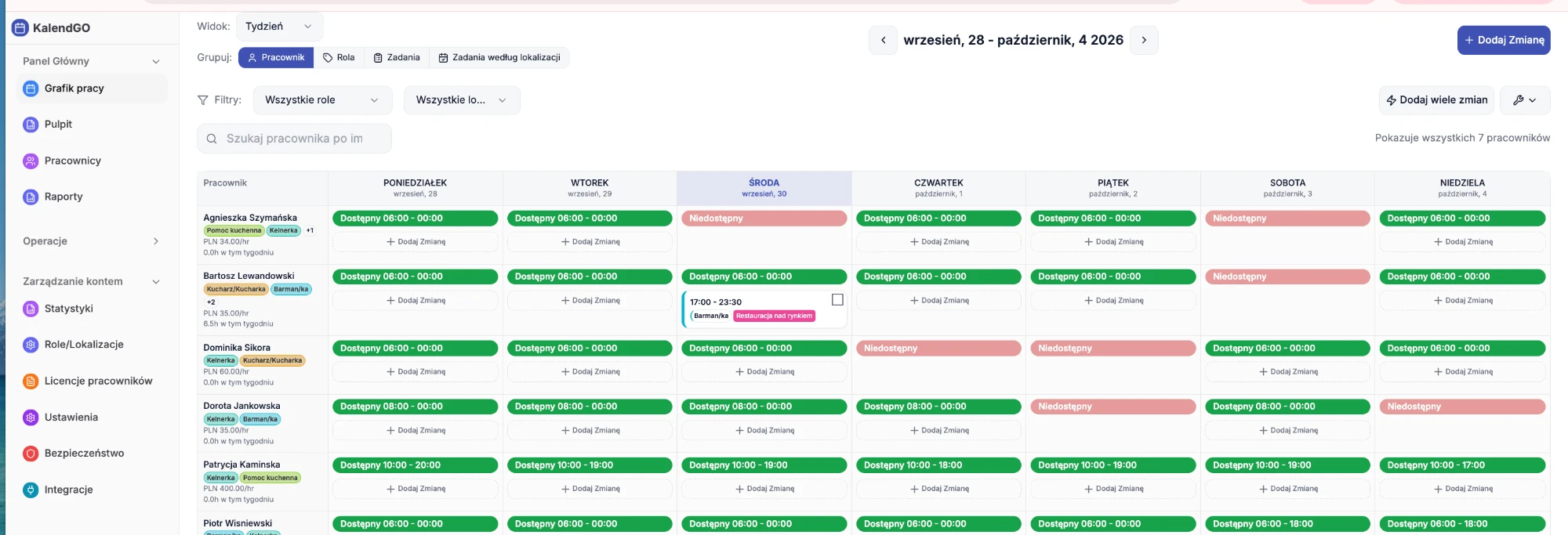
In the menu on the left, click Work Schedule. You'll see a weekly view of all employees' shifts.
Click Add Shift
Click the Add Shift button in the top right corner, or the Add Shift button in the calendar, in the cell for a specific day and employee.
Fill in the shift details
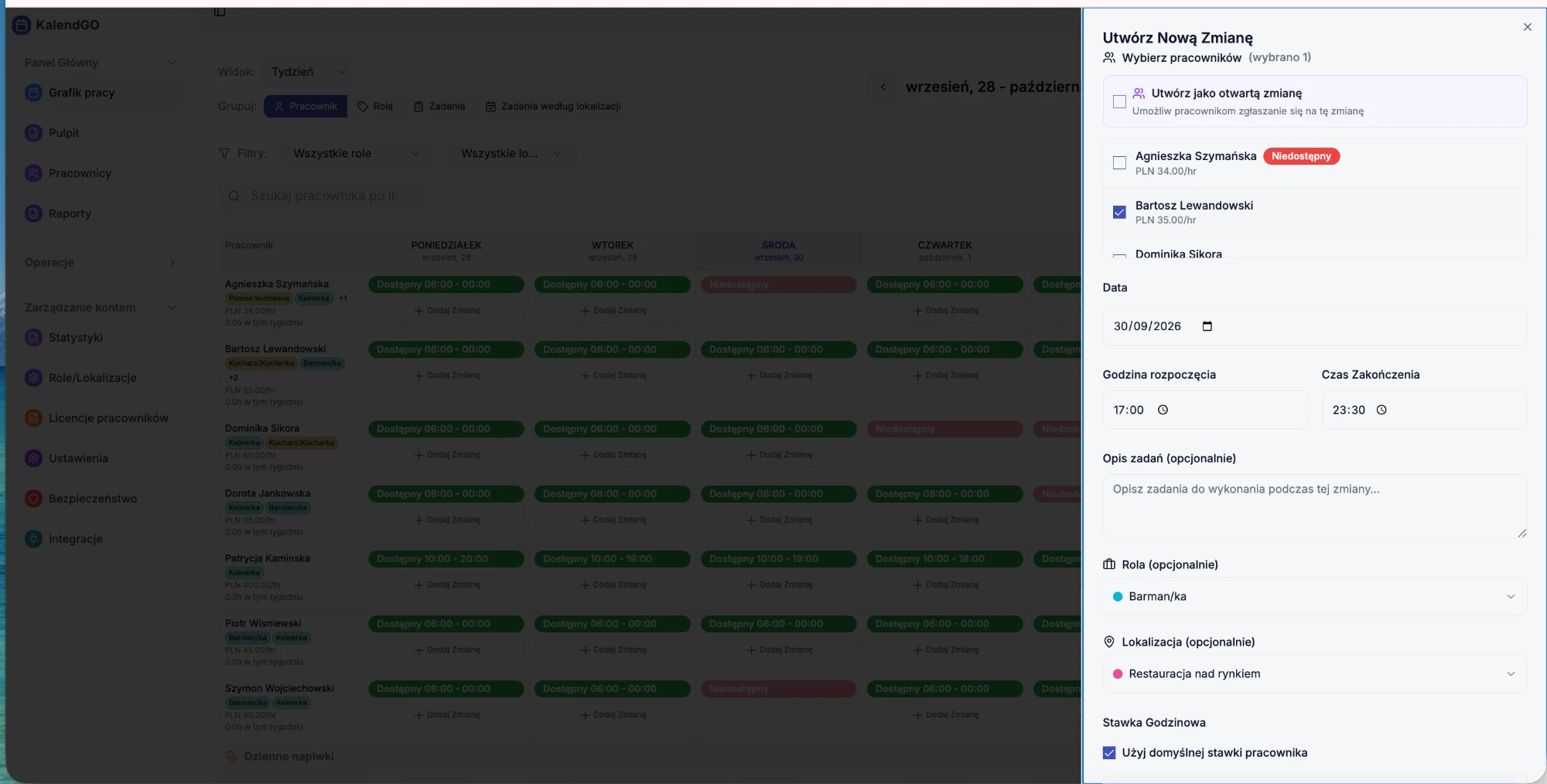
In the Create New Shift window, select the employee (employees who aren't available on that day are marked as Unavailable), and choose the date and the start and end time. You can also add the shift's role and location, and a description of the tasks to do (optional). If this is a regular shift for this employee, tick Recurring Shift. Finally, click Create.
Publish the shift so the employee can see it
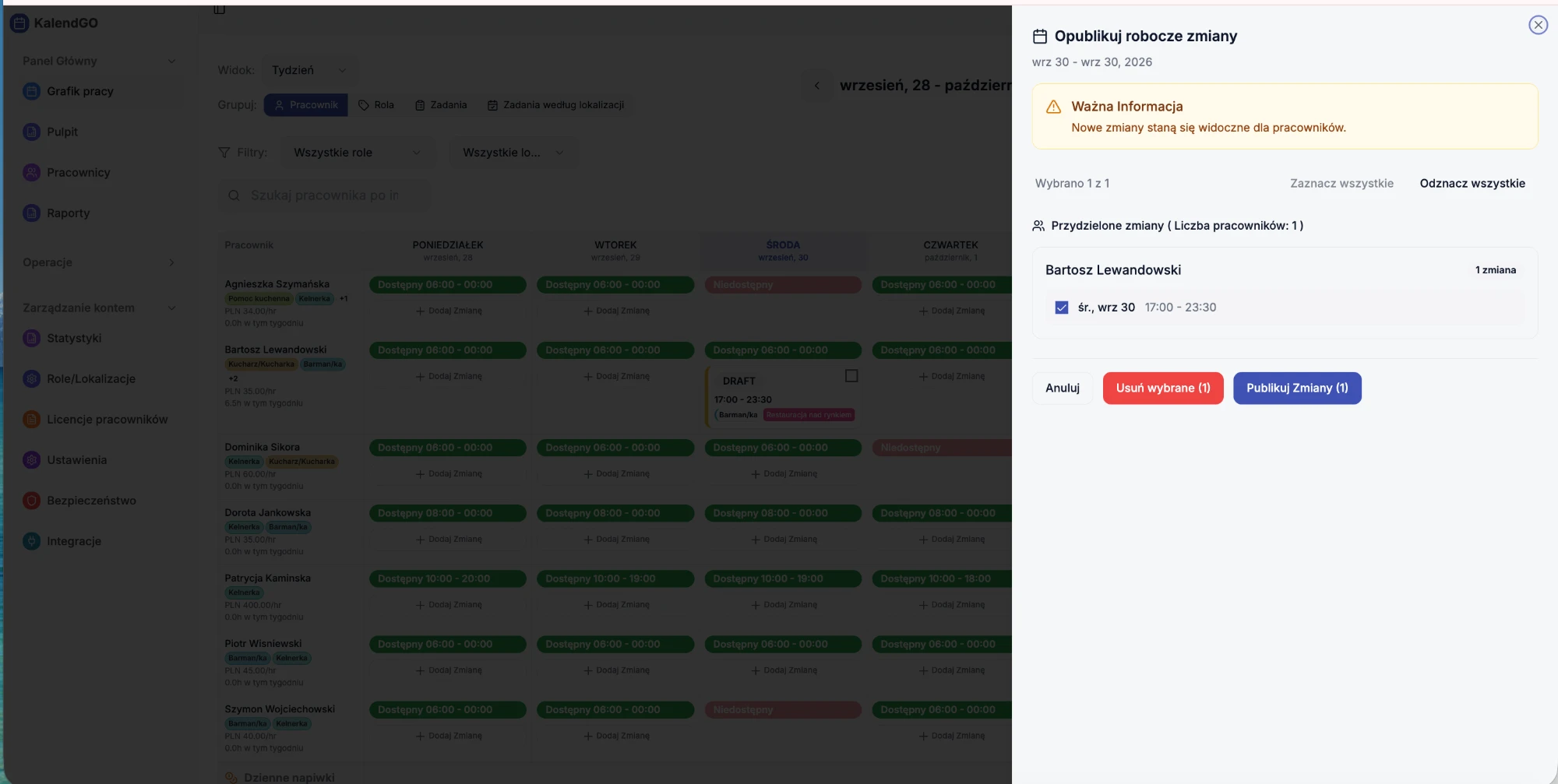
A new shift is saved as a draft (DRAFT), so the employee can't see it yet. Click Publish Shift in the top right corner. In the Publish Draft Shifts window, tick the shifts you want to publish (you can use Select All) and click Publish Shifts. Only then will the shift be visible to the employee. You can remove drafts you don't need with the Delete Selected button.
Open shift
If you don't have a specific employee for a shift yet, create an open shift. It can be general or assigned to a specific role or location. Employees will get a notification about the open shift and can apply for it.
Tick Create as Open Shift
Click Add Shift and, at the top of the form, tick Create as Open Shift (Allow employees to apply for this shift). Set the date and hours and, if needed, choose a role and location so the notification reaches the right people. For an open shift, you enter the hourly rate for that shift. Click Create.
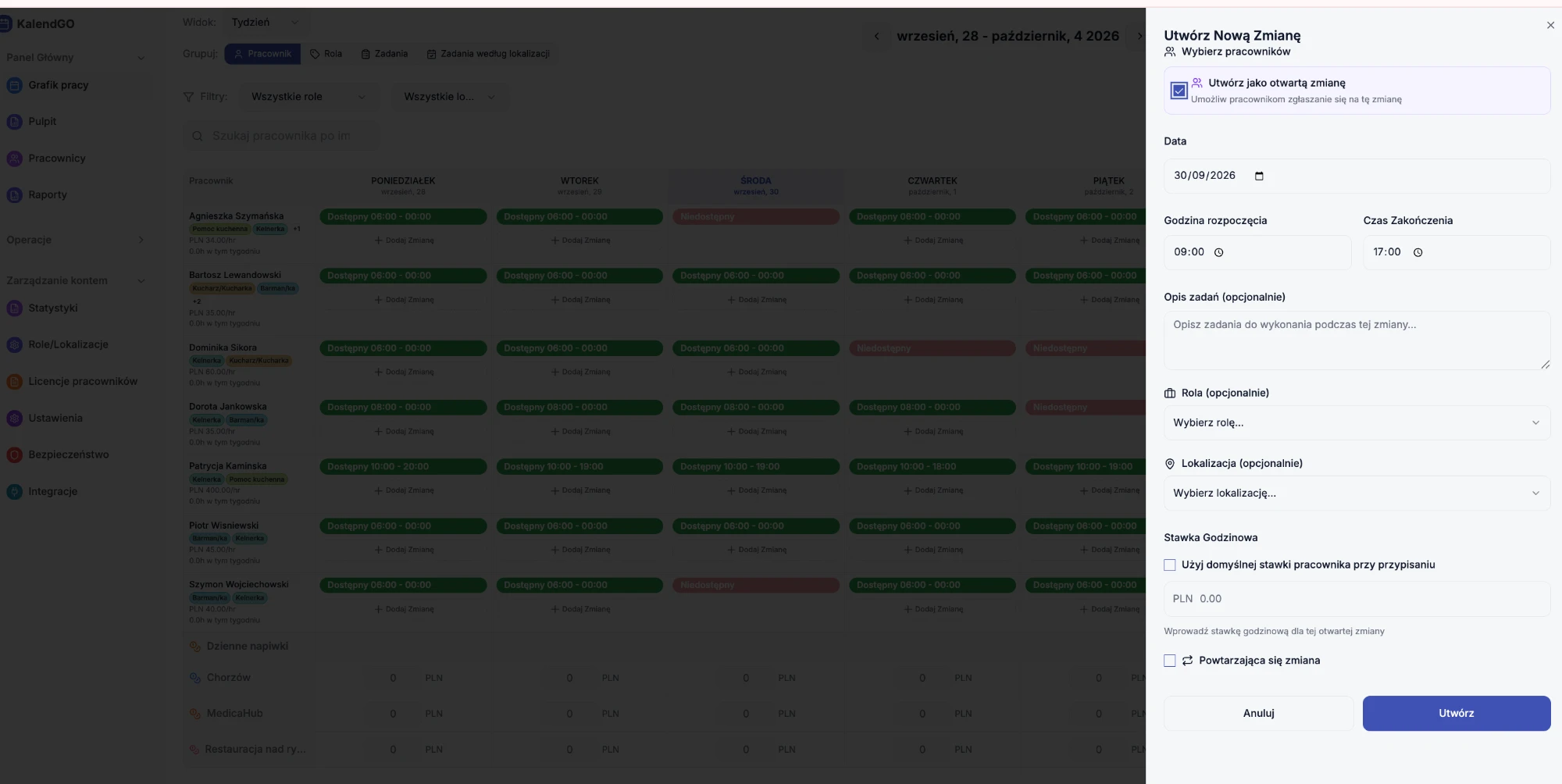
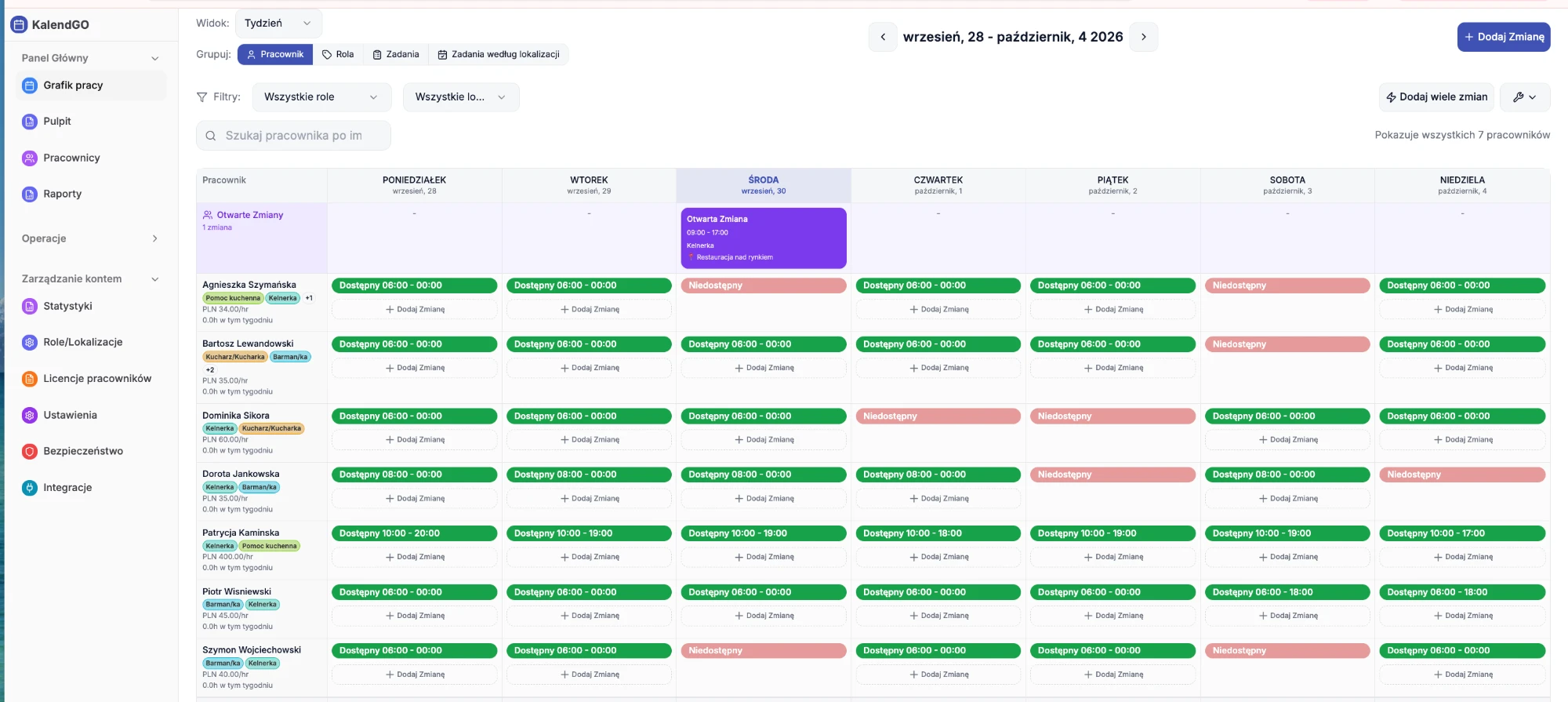
Find the open shift in the schedule
Open shifts appear in a separate Open Shifts row at the top of the schedule, in the column for the relevant day.
Saving a schedule template
If the schedule you build repeats from week to week, you don't have to build it from scratch every time. Save a finished week as a template and apply it to the following weeks.
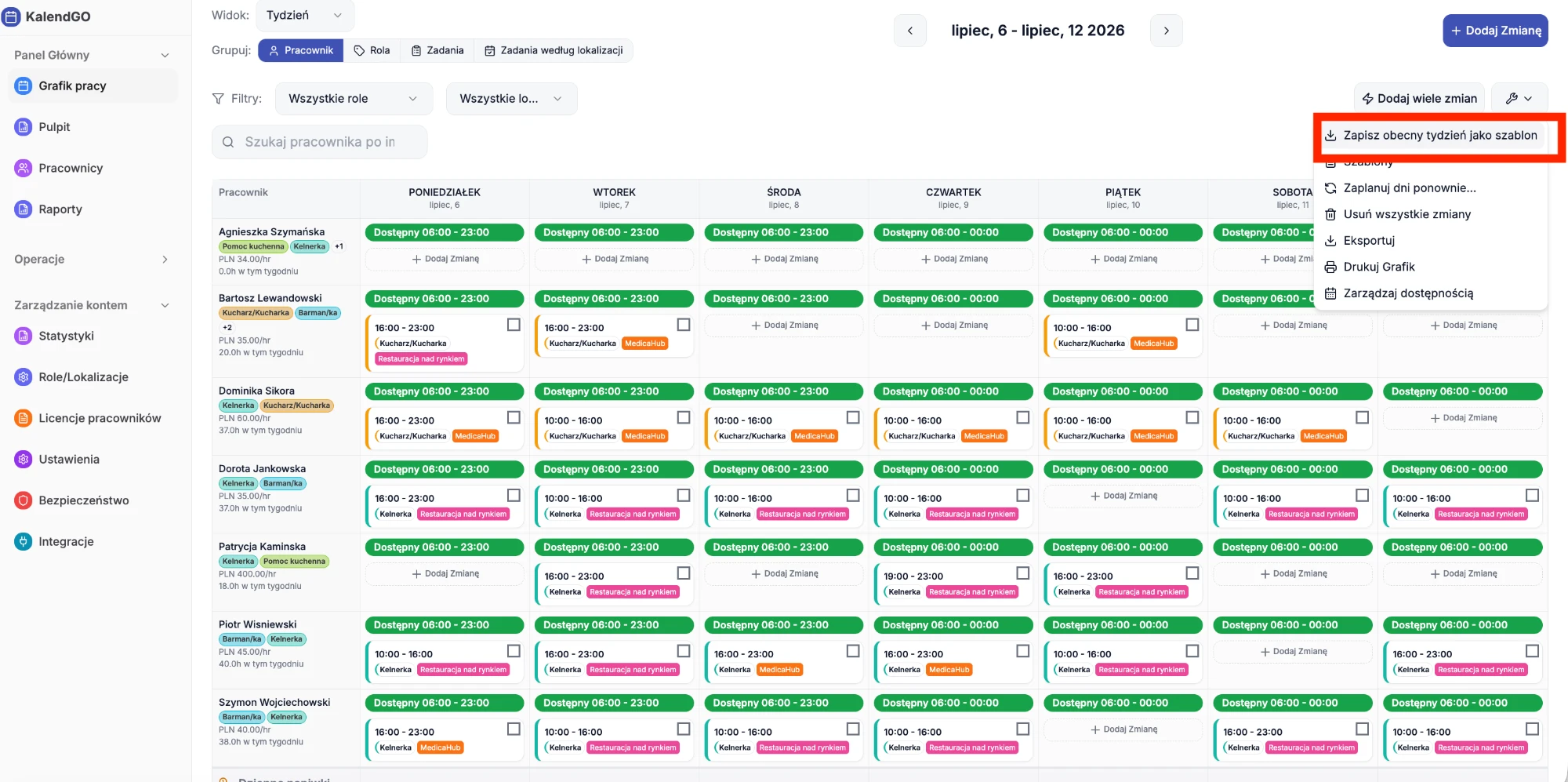
Open the tools menu
When the week is ready, click the tools icon in the top right corner of the schedule (next to the Add Multiple Shifts button) and choose Save Current Week as Template.
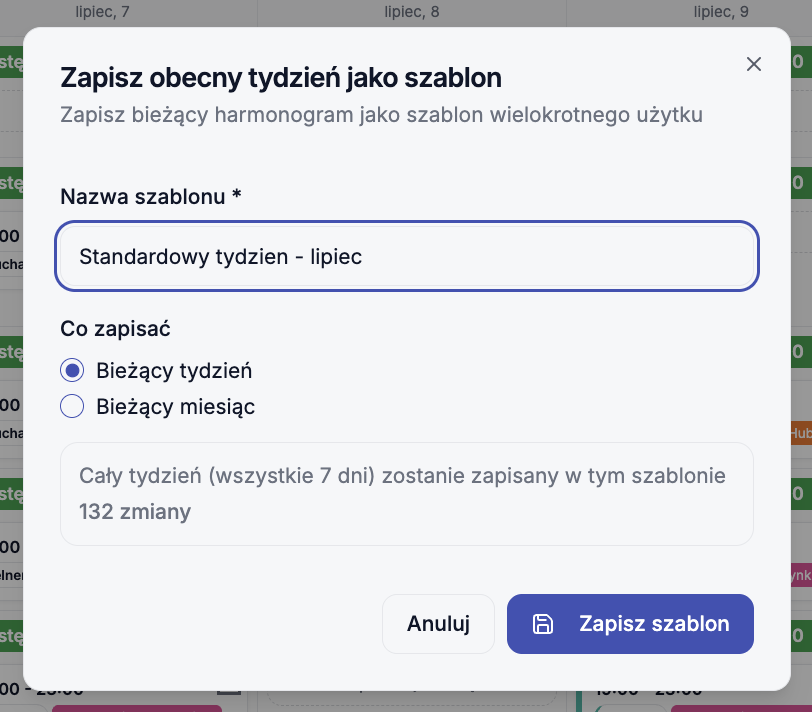
Name and save the template
Enter a name for the template, e.g. Standard week - July. In the What to Save field, choose Current Week or Current Month. The window shows how many shifts will go into the template. Click Save Template.
Open templates in the following week
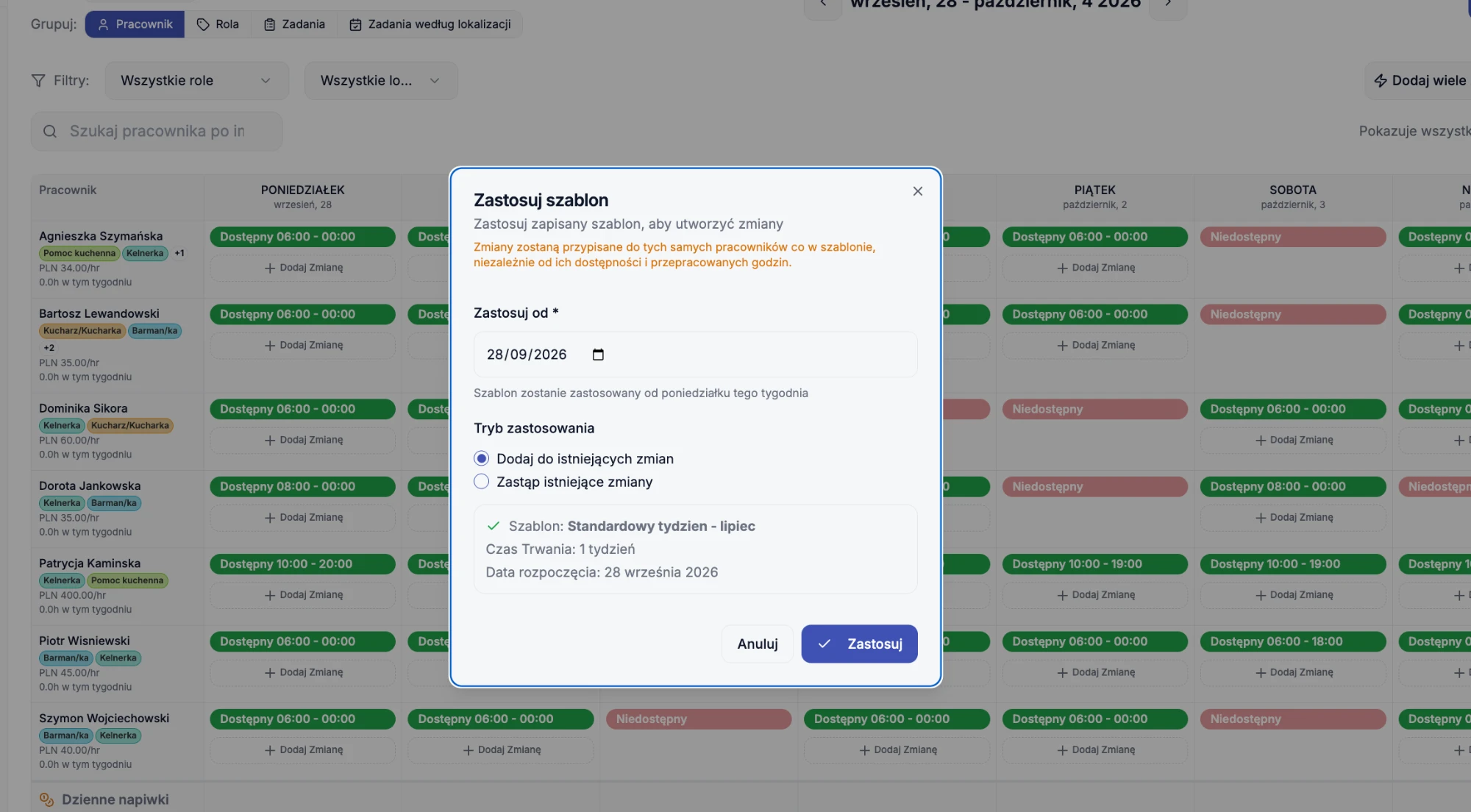
Go to the week you want to apply the template to, click the tools icon again and choose Templates. Select your saved template.
Apply the template
In the Apply Template window, set the date in the Apply From field (the template will be applied from the Monday of that week). In the Apply Mode field, choose Add to Existing Shifts or Replace Existing Shifts. Check the template summary (name, duration, start date) and click Apply. Exactly the same employees will get the same shifts you saved in the template.