
Time tracking settings: time zone, GPS and QR code
Updated: October 1, 2026
In this guide, you'll set up how employees record their shift hours: you'll choose the time zone, the clock-in method (GPS, QR code or basic tracking) and how working time is calculated for pay. It only takes a few minutes.
Open the time tracking settings
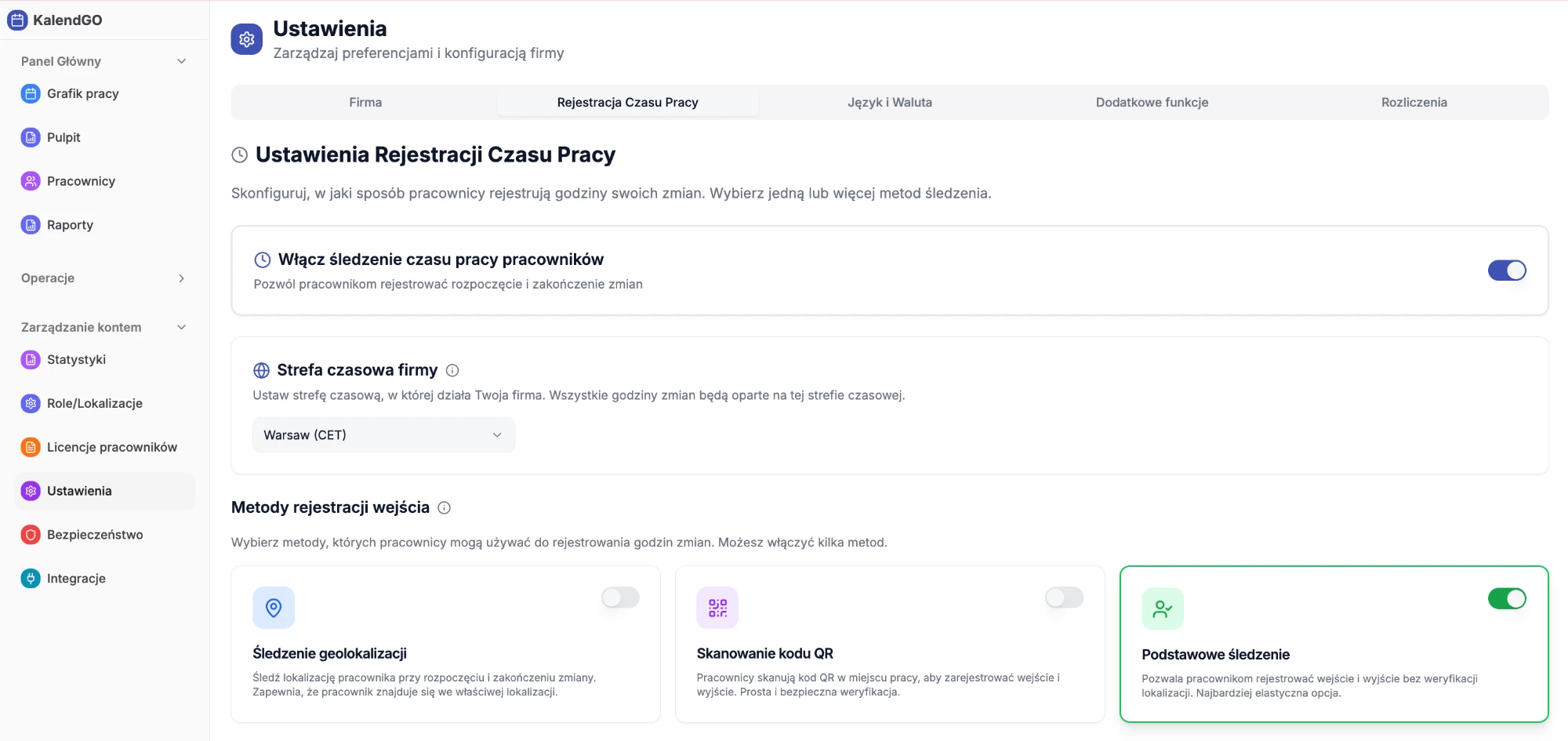
In the menu on the left, click Settings (in the Account Management section), then go to the Time Tracking tab.
Turn on time tracking
Make sure the Enable Employee Time Tracking toggle is switched on. This lets employees record the start and end of their shifts.
Choose your company's time zone
In the Company Time Zone field, choose the zone your company operates in, e.g. Warsaw (CET). All shift times are calculated in this zone, so set it before employees start recording their time.
Choose the clock-in method
In the Clock-in Methods section, choose how employees will clock in and out of their shifts. You can turn on several methods at once:
- Geolocation Tracking (GPS). The app checks the employee's location at the start and end of the shift. The employee can only clock in or out when they're within 250 metres of the workplace. This makes sure the employee is at the right location.
- QR Code Scanning. The employee has to scan a QR code you provide in the app to clock in and out of a shift. A simple, secure way to check they're at the workplace.
- Basic Tracking. Employees clock in and out without a location check (no GPS). This is the most flexible option.
If you chose GPS: add location coordinates
With geolocation turned on, every location needs coordinates. In the menu, go to Roles/Locations and click edit on an existing location (or add a new one). In the form, tick Add Location Coordinates and enter the Latitude and Longitude. Save with the Update Location button.
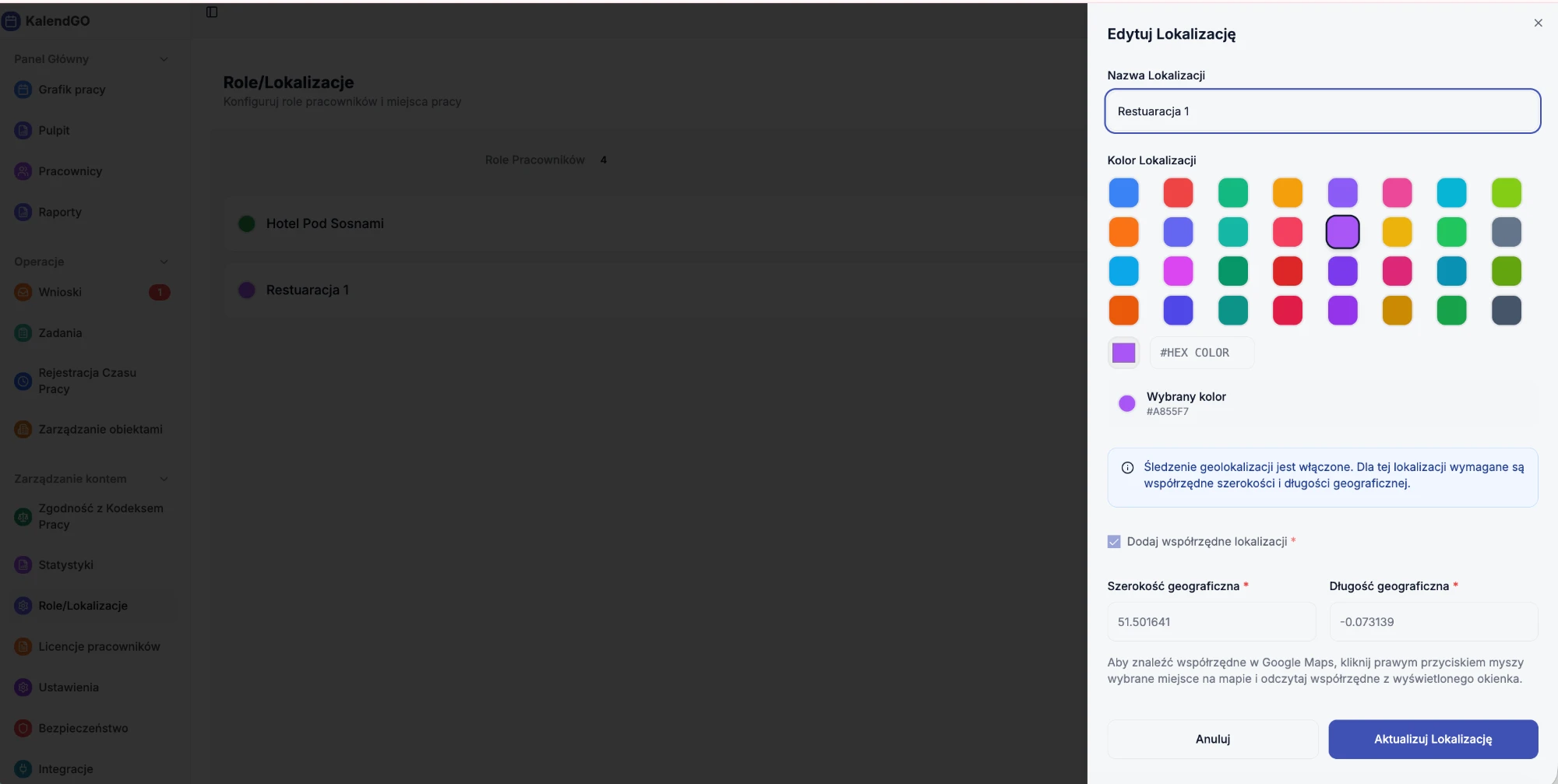
How to find your workplace's coordinates
Open the place in Google Maps, right-click its address or a point on the map, and copy the numbers that appear at the top of the window that opens. The first number is the latitude, the second is the longitude.
Choose how working time is calculated
Scroll down on the same Time Tracking tab to the Working Time Calculation section, and choose how hours are counted for pay.
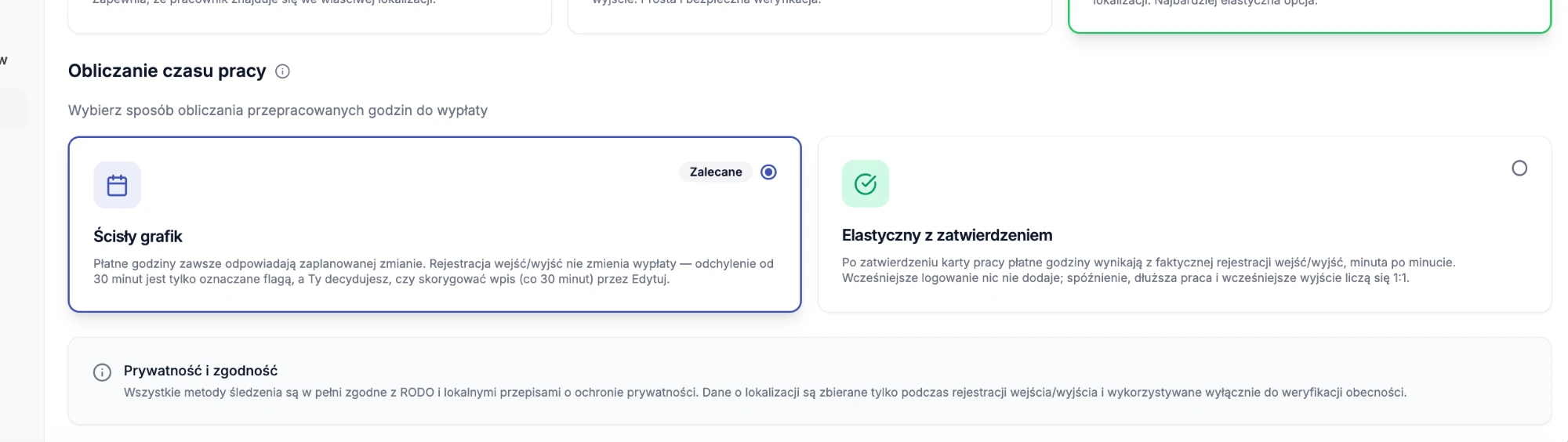
- Strict Schedule (recommended). Paid hours always match the scheduled shift. Clocking in and out doesn't change pay. A difference of 30 minutes or more is only flagged, and you decide whether to correct the entry using Edit.
- Flexible with Approval. Once the timesheet is approved, paid hours are based on actual clock-ins and clock-outs, minute by minute. Clocking in early adds nothing, while arriving late, working longer and leaving early all count 1:1.